I got an email a couple of weeks ago from someone ( Maximinus ) who actually put the water shader from the water game component to good use. Here's a description of the game on the xbox indie marketplace:
Missile Escape for Xbox Indies is simple : go flying, evade many
missiles and unlock new fighters along the way ! Warning : Fighter
pilot spirit required.
Saturday, April 10, 2010


Thursday, August 27, 2009
Particle Spectrum Animation
Really cool video I found last night. Uses Particular and Adobe After Effects.
Thursday, July 30, 2009
Water in Your Browser
Recently I’ve been playing around with O3D. If you don’t know, O3D is Google’s new browser graphics API. It enables you to develop 3d interactive applications that run inside a browser window (and quite easily mind you). In fact it rivals XNA on getting an app up and running quickly.
And on that note, I’ve ported the water sample to O3D (minus the camera animation). Besides a bug I encountered with the sample content converter (and promptly fixed by one of the o3d developers), it was a relatively painless conversion. All that was required was to setup a scene in max, apply materials, export to collada and convert to the o3d format. Setting up the render targets also took minimal effort :). The shaders, for the most part, remained untouched.
Click the picture to have a go!

If you’re interested in the max file or source you can get both here:
Friday, June 19, 2009
Non-photorealistic SSGI
I recently got back from my vacation to the Mediterranean and finally have had time to post this video.
For one of my final projects last semester I implemented a deferred renderer with SSAO and simplified global illumination (SSGI). But I wanted to have a dream-like result, so I over emphasized the color bleeding and used the light accumulation buffer plus emissive color of objects; and lots of blurring. The result looks pretty neat I think, not at all accurate lighting but cool none the less. This one was done in C++/DirectX instead of the usual XNA fare.
Large HD video on youtube
For one of my final projects last semester I implemented a deferred renderer with SSAO and simplified global illumination (SSGI). But I wanted to have a dream-like result, so I over emphasized the color bleeding and used the light accumulation buffer plus emissive color of objects; and lots of blurring. The result looks pretty neat I think, not at all accurate lighting but cool none the less. This one was done in C++/DirectX instead of the usual XNA fare.
Large HD video on youtube
Thursday, April 23, 2009
Volume Rendering Update, DirectX blog
Wow, I can't believe it's almost May already. I also can't believe my last post was back in February! I've had the next installment in the volume rendering series basically done since January. I just have to put some finishing touches on it and write the post. I've just been very busy finishing my last semester, research, searching for a job, and considering graduate school.
I've been working on a deferred renderer and delving into screen space ambient occlusion and global illumination for one of my final projects. I'll probably post some images of the final result when it's done.
Ysaneya has a very interesting post on deferred rendering and instant radiosity.
Also, if you haven't noticed, the DirectX team has a new blog: http://blogs.msdn.com/DirectX/
I've been working on a deferred renderer and delving into screen space ambient occlusion and global illumination for one of my final projects. I'll probably post some images of the final result when it's done.
Ysaneya has a very interesting post on deferred rendering and instant radiosity.
Also, if you haven't noticed, the DirectX team has a new blog: http://blogs.msdn.com/DirectX/
Wednesday, February 4, 2009
Volume Rendering 201: Optimizations
The discussion on hand this time is optimizing the performance of the volume renderer. I’ll cover a few of these optimizations and provide a rough implementation of one of them.
Cache Efficiency and Memory Access

Picture from Real-time Volume Graphics.
Currently we load our volume data into a linear layout in memory. However, the ray that is cast through the volume is not likely to access neighboring voxels as we traverse it through the volume when the data is in a linear layout. But we can improve the cache efficiency by converting the layout to a block-based manor through swizzling. With the data in a block format, the GPU is more likely to cache neighboring voxels as we walk through the volume, which will lead to an increase in memory performance.
Empty-Space Leaping
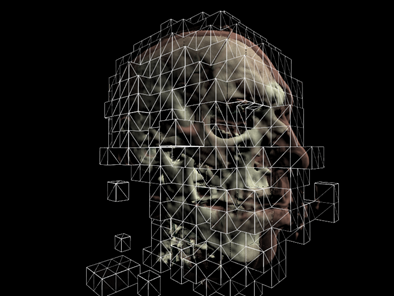
In the previous samples we ray-casted against the entire bounding volume of the data set, even if we were just sampling samples with zero alpha along the way. But we can skip these samples all together, and only render parts of the volume that have a non-zero alpha in the transfer function. More on this in a bit.
Occlusion Culling
If we render the volume in a block-based fashion as above, and sort the blocks from front to back, we can use occlusion queries to determine which blocks are completely occluded by blocks in front of them. There are quite a few tutorials on occlusion queries on the net, including this one at ziggyware.
Deferred Shading
We can also boost performance by deferring the shading calculations. Instead shading every voxel during the ray-casting, we can just output the depth and color information into off-screen buffers. Then we render a full-screen quad and use the depth information to calculate normals in screen space and then continue to calculate the shading. Calculating normals this way also has the advantage of being smoother and have less artifacts that computing the gradients of the volume and storing them in a 3D texture. We also save memory this way since we don’t have to save the normals, only the isovalues in the 3D texture.
Image Downscaling
If the data we are rendering is low frequency (e.g. volumetric fog), we can render the volume into an off-screen buffer that is half the size of the window. Then we can up-scale this image during a final pass. This method is also included in the sample.
Implementing Empty-Space Leaping
To implement empty-space leaping we need to subdivide the volume into smaller volumes and we also need to determine if these smaller volumes have an opacity greater than zero. To subdivide the volume we follow an approach very similar to quadtree or octree construction. We start out with an original volume from [0, 0, 0] to [1, 1, 1]. The volume is then recursively subdivided until the volume width is say .1 (so we basically divide the volume along each dimension by 10). Here’s how we do that:
Problems
Now, a problem that this method introduces is overdraw. You can see the effects of this when rotating the camera to view the back of the bear; here the frame rate drops considerably. To remedy this the sub-volumes need to be sorted front to back by their distance to the camera each time the view changes. I’ve left this as an exercise for the reader. The new demo implements empty space leaping and downscaling. And when rendering the teddy bear volume frame rates on my 8800GT are at about 190 FPS. Compare this to the the last demo from 102 at 30 FPS. All at a resolution of 800x600. Pretty good results! Next time I’ll be introducing soft shadows and translucent materials.
References: Real-time Volume Graphics
Cache Efficiency and Memory Access

Picture from Real-time Volume Graphics.
Currently we load our volume data into a linear layout in memory. However, the ray that is cast through the volume is not likely to access neighboring voxels as we traverse it through the volume when the data is in a linear layout. But we can improve the cache efficiency by converting the layout to a block-based manor through swizzling. With the data in a block format, the GPU is more likely to cache neighboring voxels as we walk through the volume, which will lead to an increase in memory performance.
Empty-Space Leaping

In the previous samples we ray-casted against the entire bounding volume of the data set, even if we were just sampling samples with zero alpha along the way. But we can skip these samples all together, and only render parts of the volume that have a non-zero alpha in the transfer function. More on this in a bit.
Occlusion Culling
If we render the volume in a block-based fashion as above, and sort the blocks from front to back, we can use occlusion queries to determine which blocks are completely occluded by blocks in front of them. There are quite a few tutorials on occlusion queries on the net, including this one at ziggyware.
Deferred Shading
We can also boost performance by deferring the shading calculations. Instead shading every voxel during the ray-casting, we can just output the depth and color information into off-screen buffers. Then we render a full-screen quad and use the depth information to calculate normals in screen space and then continue to calculate the shading. Calculating normals this way also has the advantage of being smoother and have less artifacts that computing the gradients of the volume and storing them in a 3D texture. We also save memory this way since we don’t have to save the normals, only the isovalues in the 3D texture.
Image Downscaling
If the data we are rendering is low frequency (e.g. volumetric fog), we can render the volume into an off-screen buffer that is half the size of the window. Then we can up-scale this image during a final pass. This method is also included in the sample.
Implementing Empty-Space Leaping
To implement empty-space leaping we need to subdivide the volume into smaller volumes and we also need to determine if these smaller volumes have an opacity greater than zero. To subdivide the volume we follow an approach very similar to quadtree or octree construction. We start out with an original volume from [0, 0, 0] to [1, 1, 1]. The volume is then recursively subdivided until the volume width is say .1 (so we basically divide the volume along each dimension by 10). Here’s how we do that:
private void RecursiveVolumeBuild(Cube C)
{
     //stop when the current cube is 1/10 of the original volume
     if (C.Width <= 0.1f)
     {
          //add the min/max vertex to the list

          Vector3 min = new Vector3(C.X, C.Y, C.Z);

          Vector3 max = new Vector3(C.X + C.Width, C.Y + C.Height, C.Z + C.Depth);

          Vector3 scale = new Vector3(mWidth, mHeight, mDepth);

          //additively sample the transfer function and check if there are any

         //samples that are greater than zero

         float opacity = SampleVolume3DWithTransfer(min * scale, max * scale);

         if(opacity > 0.0f)

         {

               BoundingBox box = new BoundingBox(min, max);

               //add the corners of the bounding box

               Vector3[] corners = box.GetCorners();

               for (int i = 0; i < 8; i++)

               {

                    VertexPositionColor v;

                    v.Position = corners[i];

                    v.Color = Color.Blue;

                    mVertices.Add(v);

               }

          }

          return;
     }

     float newWidth = C.Width / 2f;
     float newHeight = C.Height / 2f;
     float newDepth = C.Depth / 2f;

     ///  SubGrid        r  c  d
     ///  Front:
     ///  Top-Left    :  0   0   0
     ///  Top-Right   :  0   1   0
     ///  Bottom-Left :  1   0   0
     ///  Bottom-Right:  1   1   0
     ///  Back:
     ///  Top-Left    :  0   0   1
     ///  Top-Right   :  0   1   1
     ///  Bottom-Left :  1   0   1
     ///  Bottom-Right:  1   1   1
     for (float r = 0; r < 2; r++)
     {
          for (float c = 0; c < 2; c++)

          {
                for (float d = 0; d < 2; d++)

                {

                     Cube cube = new Cube(C.Left + c * (newWidth),

                                          C.Top + r * (newHeight),

                                          C.Front + d * (newDepth),

                                          newWidth,

                                          newHeight,

                                          newDepth);

                                          RecursiveVolumeBuild(cube);

                }

          }
     }
}
To determine whether a sub-volume contains any samples that have opacity, we simply loop over the volume and additively sample the transfer function:
private float SampleVolume3DWithTransfer(Vector3 min, Vector3 max)
{
     float result = 0.0f;

     for (int x = (int)min.X; x <= (int)max.X; x++)
     {
          for (int y = (int)min.Y; y <= (int)max.Y; y++)

          {

               for (int z = (int)min.Z; z <= (int)max.Z; z++)

               {

                    //sample the volume to get the iso value

                    //it was stored [0, 1] so we need to scale to [0, 255]

                    int isovalue = (int)(sampleVolume(x, y, z) * 255.0f);

                    //accumulate the opacity from the transfer function

                    result += mTransferFunc[isovalue].W * 255.0f;

               }

          }

     }

     return result;
}
Depending on the transfer function (a lot of zero opacity samples), this method can increase our performance by 50%.
Problems
Now, a problem that this method introduces is overdraw. You can see the effects of this when rotating the camera to view the back of the bear; here the frame rate drops considerably. To remedy this the sub-volumes need to be sorted front to back by their distance to the camera each time the view changes. I’ve left this as an exercise for the reader. The new demo implements empty space leaping and downscaling. And when rendering the teddy bear volume frame rates on my 8800GT are at about 190 FPS. Compare this to the the last demo from 102 at 30 FPS. All at a resolution of 800x600. Pretty good results! Next time I’ll be introducing soft shadows and translucent materials.
References: Real-time Volume Graphics
Tuesday, January 20, 2009
Volume Rendering 102: Transfer Functions
Last time I introduced the concept of volume ray-casting. And to follow that up, today I'll talk about transfer functions and shading.
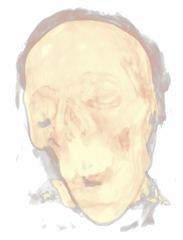
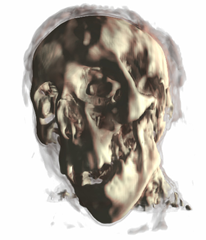
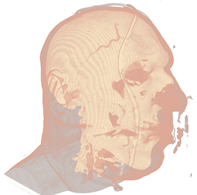
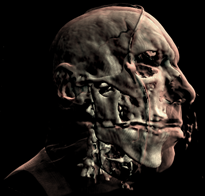
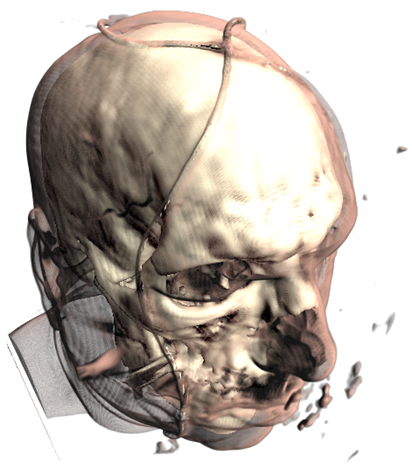
Mummy (top) and Male (bottom) volumes colored with a transfer function (left) and shaded (right).
A transfer function is used to assign RGB and alpha values for every voxel in the volume. A 1D transfer function maps one RGBA value for every isovalue [0, 255]. Multi-dimensional transfer functions allow multiple RGBA values to be mapped to a single isovalue. These are however out of the scope of this tutorial, so I will just focus on 1D transfer functions.
The transfer function is used to "view" a certain part of the volume. As with the second set of pictures above, there is a skin layer/material and there is a skull layer/material. A transfer function could be designed to just look at the skin, the skull, or both (as is pictured). There are a few different ways of creating transfer functions. One is two manually define the transfer functions by specifying the RGBA values for the isovalues (what we will be doing), and another is through visual controls and widgets. Manually defining the transfer function is a lot like guess work and takes a bit of time, but is the easiest way to get your feet wet. Visually designing transfer functions is the easiest way to get good results quickly as it happens at run-time. But this method is quite complex to implement (at least for a tutorial).
Creating the transfer function:
To create a transfer function, we want to define the RGBA values for certain isovalues (control points or control knots) and then interpolate between these values to produce a smooth transition between layers/materials. Our transfer function will result in a 1D texture with a width of 256.
First we have the TransferControlPoint class. This class takes an RGB color or alpha value for a specific isovalue.

So we have defined a range of color for the skin and a longer range of color for the skull/bone.
But how do we interpolate between the control points? We will fit a cubic spline to the control points to produce a nice smooth interpolation between the knots. For a more in-depth discussion on cubic splines refer to my camera animation tutorial.
Here is a simple graph representation of the spline that is fit to the control points.

Using the transfer function:
So how do we put this transfer function to use? First we set it to a 1D texture and upload it to the graphics card. Then in the shader, we simply take the isovalue sampled from the 3d volume texture and use that to index the transfer function texture.
Calculating Gradients:
The method we will use to calculate the gradients is the central differences scheme. This takes the last and next samples of the current sample to calculate the gradient/normal. This can be performed at run-time in the shader, but as it requires 6 extra texture fetches from the 3D texture, it is quite slow. So we will calculate the gradients and place them in the RGB components of our volume texture and move the isovalue to the alpha channel. This way we only need one volume texture for the data set instead of two: one for the gradients and one for the isovalues.
Calculating the gradients is pretty simple. We just loop through all the samples and find the difference between the next and previous sample to calculate the gradients:
Now that we have the gradients we just fill the xyz components of the 3D volume texture and put the isovalue in the alpha channel:
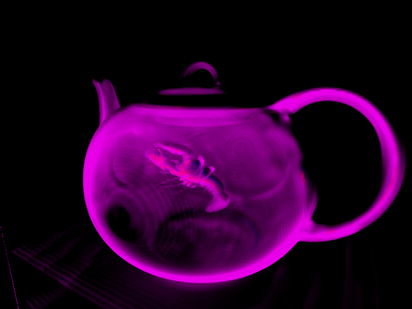
A teapot with just transfer function:

The teapot with transfer function and shaded:


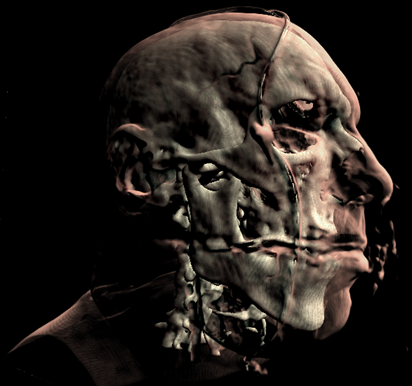
Now a CT scan of a male head. Just transfer function:

Now with shading:

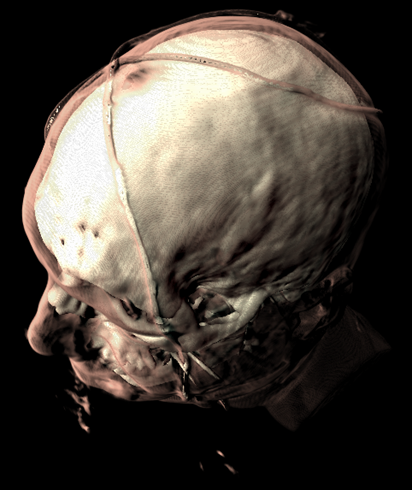


And a mummy:


*The CT Male data set was converted from PVM format to RAW format with the V3 library. The original data set can be found here: http://www9.informatik.uni-erlangen.de/External/vollib/


Mummy (top) and Male (bottom) volumes colored with a transfer function (left) and shaded (right).
A transfer function is used to assign RGB and alpha values for every voxel in the volume. A 1D transfer function maps one RGBA value for every isovalue [0, 255]. Multi-dimensional transfer functions allow multiple RGBA values to be mapped to a single isovalue. These are however out of the scope of this tutorial, so I will just focus on 1D transfer functions.
The transfer function is used to "view" a certain part of the volume. As with the second set of pictures above, there is a skin layer/material and there is a skull layer/material. A transfer function could be designed to just look at the skin, the skull, or both (as is pictured). There are a few different ways of creating transfer functions. One is two manually define the transfer functions by specifying the RGBA values for the isovalues (what we will be doing), and another is through visual controls and widgets. Manually defining the transfer function is a lot like guess work and takes a bit of time, but is the easiest way to get your feet wet. Visually designing transfer functions is the easiest way to get good results quickly as it happens at run-time. But this method is quite complex to implement (at least for a tutorial).
Creating the transfer function:
To create a transfer function, we want to define the RGBA values for certain isovalues (control points or control knots) and then interpolate between these values to produce a smooth transition between layers/materials. Our transfer function will result in a 1D texture with a width of 256.
First we have the TransferControlPoint class. This class takes an RGB color or alpha value for a specific isovalue.
public class TransferControlPoint{
    public Vector4 Color;
    public int IsoValue;

    /// <summary>
    /// Constructor for color control points.
    /// Takes rgb color components that specify the color at the supplied isovalue.
    /// </summary>
    /// <param name="x"></param>
    /// <param name="y"></param>
    /// <param name="z"></param>
    /// <param name="isovalue"></param>
    public TransferControlPoint(float r, float g, float b, int isovalue)
    {
        Color.X = r;
        Color.Y = g;
        Color.Z = b;
        Color.W = 1.0f;
        IsoValue = isovalue;
    }

    /// <summary>
    /// Constructor for alpha control points.
    /// Takes an alpha that specifies the aplpha at the supplied isovalue.
    /// </summary>
    /// <param name="alpha"></param>
    /// <param name="isovalue"></param>
    public TransferControlPoint(float alpha, int isovalue)
    {
        Color.X = 0.0f;
        Color.Y = 0.0f;
        Color.Z = 0.0f;
        Color.W = alpha;
        IsoValue = isovalue;
    }
}
This class will represent the control points that we will interpolate. I've added two lists to the Volume class, mAlphaKnots and mColorKnots. These will be the list of transfer control points that we will setup and interpolate to produce the transfer function. To produce the result for the Male dataset above, here are the transfer control points that we will define:
mesh.ColorKnots = new List<TransferControlPoint> {
                        new TransferControlPoint(.91f, .7f, .61f, 0),
                        new TransferControlPoint(.91f, .7f, .61f, 80),
                        new TransferControlPoint(1.0f, 1.0f, .85f, 82),
                        new TransferControlPoint(1.0f, 1.0f, .85f, 256)
                        };

mesh.AlphaKnots = new List<TransferControlPoint> {
                        new TransferControlPoint(0.0f, 0),
                        new TransferControlPoint(0.0f, 40),
                        new TransferControlPoint(0.2f, 60),
                        new TransferControlPoint(0.05f, 63),
                        new TransferControlPoint(0.0f, 80),
                        new TransferControlPoint(0.9f, 82),
                        new TransferControlPoint(1f, 256)
                        };
You need to specify at least two control points at isovalues 0 and 256 for both alpha and color. Also the control points need to be ordered (low to high) by the isovalue. So the first entry in the list should always be the RGB/alpha value for the zero isovalue, and the last entry should always be the RGB/alpha value for the 256 isovalue. The above list of control points produce the following transfer function after interpolation:

So we have defined a range of color for the skin and a longer range of color for the skull/bone.
But how do we interpolate between the control points? We will fit a cubic spline to the control points to produce a nice smooth interpolation between the knots. For a more in-depth discussion on cubic splines refer to my camera animation tutorial.
Here is a simple graph representation of the spline that is fit to the control points.

Using the transfer function:
So how do we put this transfer function to use? First we set it to a 1D texture and upload it to the graphics card. Then in the shader, we simply take the isovalue sampled from the 3d volume texture and use that to index the transfer function texture.
value = tex3Dlod(VolumeS, pos);

src = tex1Dlod(TransferS, value.a);
Now we have the color and opacity of the current sample. Next, we have to shade it. While this is simply diffuse shading I will go over how to calculate gradients (aka normals) for the 3D volume.
Calculating Gradients:
The method we will use to calculate the gradients is the central differences scheme. This takes the last and next samples of the current sample to calculate the gradient/normal. This can be performed at run-time in the shader, but as it requires 6 extra texture fetches from the 3D texture, it is quite slow. So we will calculate the gradients and place them in the RGB components of our volume texture and move the isovalue to the alpha channel. This way we only need one volume texture for the data set instead of two: one for the gradients and one for the isovalues.
Calculating the gradients is pretty simple. We just loop through all the samples and find the difference between the next and previous sample to calculate the gradients:
/// <summary>
/// Generates gradients using a central differences scheme./// </summary>
/// <param name="sampleSize">The size/radius of the sample to take.</param>private void generateGradients(int sampleSize)
{
    int n = sampleSize;
    Vector3 normal = Vector3.Zero;
    Vector3 s1, s2;

    int index = 0;
    for (int z = 0; z < mDepth; z++)
    {
        for (int y = 0; y < mHeight; y++)
        {
            for (int x = 0; x < mWidth; x++)
            {
                s1.X = sampleVolume(x - n, y, z);
                s2.X = sampleVolume(x + n, y, z);
                s1.Y = sampleVolume(x, y - n, z);
                s2.Y = sampleVolume(x, y + n, z);
                s1.Z = sampleVolume(x, y, z - n);
                s2.Z = sampleVolume(x, y, z + n);

                mGradients[index++] = Vector3.Normalize(s2 - s1);
                if (float.IsNaN(mGradients[index - 1].X))
                    mGradients[index - 1] = Vector3.Zero;
            }
        }
    }
}
Next we will filter the gradients to smooth them out and prevent any high irregularities. We achieve this by a simple NxNxN cube filter. A cube filter simply averages the surrounding N^3 - 1 samples. Here's the code for the gradient filtering:
/// <summary>
/// Applies an NxNxN filter to the gradients./// Should be an odd number of samples. 3 used by default./// </summary>
/// <param name="n"></param>private void filterNxNxN(int n)
{
    int index = 0;
    for (int z = 0; z < mDepth; z++)
    {
        for (int y = 0; y < mHeight; y++)
        {
            for (int x = 0; x < mWidth; x++)
            {
                mGradients[index++] = sampleNxNxN(x, y, z, n);
            }
        }
    }
}

/// <summary>
/// Samples the sub-volume graident volume and returns the average./// Should be an odd number of samples./// </summary>
/// <param name="x"></param>
/// <param name="y"></param>
/// <param name="z"></param>
/// <param name="n"></param>
/// <returns></returns>private Vector3 sampleNxNxN(int x, int y, int z, int n)
{
    n = (n - 1) / 2;

    Vector3 average = Vector3.Zero;
    int num = 0;

    for (int k = z - n; k <= z + n; k++)
    {
        for (int j = y - n; j <= y + n; j++)
        {
            for (int i = x - n; i <= x + n; i++)
            {
                if (isInBounds(i, j, k))
                {
                    average += sampleGradients(i, j, k);
                    num++;
                }
            }
        }
    }

    average /= (float)num;
    if (average.X != 0.0f && average.Y != 0.0f && average.Z != 0.0f)
        average.Normalize();

    return average;
}
This is a really simple and slow way of filtering the gradients. A better way is to use a seperable 3D Gaussian kernal to filter the gradients.
Now that we have the gradients we just fill the xyz components of the 3D volume texture and put the isovalue in the alpha channel:
//transform the data to HalfVector4HalfVector4[] gradients = new HalfVector4[mGradients.Length];
for (int i = 0; i < mGradients.Length; i++)
{
    gradients[i] = new HalfVector4(mGradients[i].X, mGradients[i].Y, mGradients[i].Z, mScalars[i].ToVector4().W);
}

mVolume.SetData<HalfVector4>(gradients);
mEffect.Parameters["Volume"].SetValue(mVolume);
And that's pretty much it. Creating a good transfer function can take a little time, but this simple 1D transfer function can still produce pretty good results. Here's a few captures of what this demo can produce:
A teapot with just transfer function:

The teapot with transfer function and shaded:


Now a CT scan of a male head. Just transfer function:

Now with shading:


And a mummy:


*The CT Male data set was converted from PVM format to RAW format with the V3 library. The original data set can be found here: http://www9.informatik.uni-erlangen.de/External/vollib/
Thursday, January 15, 2009
Volume Rendering 101


Pictures above from: http://www.cs.utah.edu/~jmk/simian/


There is quite a bit of documentation and papers on volume rendering. But there aren't many good tutorials on the subject (that I have seen). So this tutorial will try to teach the basics of volume rendering, more specifically volume ray-casting (or volume ray marching).
What is volume ray-casting you ask? You didn't? Oh, well I'll tell you anyway. Volume rendering is a method for directly displaying a 3D scalar field without first fitting an intermediate representation to the data, such as triangles. How do we render a volume without geometry? There are two traditional ways of rendering a volume: slice-based rendering and volume ray-casting. This tutorial will be focusing on volume ray-casting. There are many advantages over slice-based rendering that ray-casting provides; such as empty space skipping, projection independence, simple to implement, and single pass.
Volume ray-casting (also called ray marching) is exactly how it sounds. [edit: volume ray-casting is not the same as ray-casting ala Doom or Nick's tutorials] Rays are cast through the volume and is sample along equally spaced intervals. As the ray is marched through the volume scalar values are mapped to optical properties through the
use of a transfer function which results in an RGBA color value that includes the corresponding emission and absorption coefficients for the current sample point. This color is then composited by using front-to-back or back-to-front alpha blending.
This tutorial will focus specifically on how to intersect a ray with the volume and march it through the volume. In another tutorial I will focus on transfer functions and shading.
First we need to know how to read in the data. The data is simply scalar values (usually integers or floats) stored as slices [x, y, z], where x = width, y = height, and z = depth. Each slice is x units wide and y units high, and the total number of slices is equal to z. A common format for the data is to be stored in 8-bit or 16-bit RAW format. Once we have the data, we need to load it into a volume texture. Here's how we do the whole process:
//create the scalar volume texturemVolume = new Texture3D(Game.GraphicsDevice, mWidth, mHeight, mDepth, 0,
                        TextureUsage.Linear, SurfaceFormat.Single);

private void loadRAWFile8(FileStream file)
{
    BinaryReader reader = new BinaryReader(file);

    byte[] buffer = new byte[mWidth * mHeight * mDepth];
    int size = sizeof(byte);

    reader.Read(buffer, 0, size * buffer.Length);

    reader.Close();

    //scale the scalar values to [0, 1]
    mScalars = new float[buffer.Length];
    for (int i = 0; i < buffer.Length; i++)
    {
        mScalars[i] = (float)buffer[i] / byte.MaxValue;
    }

    mVolume.SetData(mScalars);
    mEffect.Parameters["Volume"].SetValue(mVolume);
}
In order to render this texture we fit a bounding box or cube, that is from [0,0,0] to [1,1,1] to the volume. And we render the cube and sample the volume texture to render the volume. But we also need a way to find the ray that starts at the eye/camera and intersects the cube.

We could always calculate the intersection of the ray from the eye to the current pixel position with the cube by performing a ray-cube intersection in the shader. But a better and faster way to do this is to render the positions of the front and back facing triangles of the cube to textures. This easily gives us the starting and end positions of the ray, and in the shader we simply sample the textures to find the sampling ray.
Here's what the textures look like (Front, Back, Ray Direction):


And here's the code to render the front and back positions:
//draw front faces
//draw the pixel positions to the textureGame.GraphicsDevice.SetRenderTarget(0, mFront);
Game.GraphicsDevice.Clear(Color.Black);

base.DrawCustomEffect();

Game.GraphicsDevice.SetRenderTarget(0, null);
//draw back faces
//draw the pixel positions to the textureGame.GraphicsDevice.SetRenderTarget(0, mBack);
Game.GraphicsDevice.Clear(Color.Black);
Game.GraphicsDevice.RenderState.CullMode = CullMode.CullCounterClockwiseFace;

base.DrawCustomEffect();

Game.GraphicsDevice.SetRenderTarget(0, null);
Game.GraphicsDevice.RenderState.CullMode = CullMode.CullClockwiseFace;
Now, to perform the actual ray-casting of the volume, we render the front faces of the cube. In the shader we sample the front and back position textures to find the direction (back - front) and starting position (front) of the ray that will sample the volume. The volume is then iteratively sampled by advancing the current sampling position along the ray at equidistant steps. And we use front-to-back compositing to accumulate the pixel color.
float4 RayCastSimplePS(VertexShaderOutput input) : COLOR0{
    //calculate projective texture coordinates
    //used to project the front and back position textures onto the cube
    float2 texC = input.pos.xy /= input.pos.w;
    texC.x =  0.5f*texC.x + 0.5f;
    texC.y = -0.5f*texC.y + 0.5f;

    float3 front = tex2D(FrontS, texC).xyz;
    float3 back = tex2D(BackS, texC).xyz;

    float3 dir = normalize(back - front);
    float4 pos = float4(front, 0);

    float4 dst = float4(0, 0, 0, 0);
    float4 src = 0;

    float value = 0;

    float3 Step = dir * StepSize;

    for(int i = 0; i < Iterations; i++)
    {
        pos.w = 0;
        value = tex3Dlod(VolumeS, pos).r;

        src = (float4)value;
        src.a *= .5f; //reduce the alpha to have a more transparent result

        //Front to back blending
        // dst.rgb = dst.rgb + (1 - dst.a) * src.a * src.rgb
        // dst.a   = dst.a   + (1 - dst.a) * src.a
        src.rgb *= src.a;
        dst = (1.0f - dst.a)*src + dst;

        //break from the loop when alpha gets high enough
        if(dst.a >= .95f)
            break;

        //advance the current position
        pos.xyz += Step;

        //break if the position is greater than <1, 1, 1>
        if(pos.x > 1.0f  pos.y > 1.0f  pos.z > 1.0f)
            break;
    }

    return dst;
}
And here's the result when sampling a foot, teapot with a lobster inside, engine, bonsai tree, ct scan of an aneurysm, skull, and a teddy bear:


So, not very colorful but pretty cool. When we get into transfer functions we will start shading the volumes. The volumes used here can be found at volvis.org
Notes:
Refer to the scene setup region in VolumeRayCasting.cs, Volume.cs, and RayCasting.fx for relevant implementation details.
Also, a Shader Model 3.0 card (Nvidia 6600GT or higher) is needed to run the sample.
Thursday, November 13, 2008
Water Game Component

I had some requests awhile back for a more independent water effect that I had provided in my camera animation tutorials. And just the other day I remembered that I had totally forgot about this (doh!). So here is a DrawableGameComponent for the water effect. Have a look here to see it in action.
To setup the component we need to fill out a WaterOptions object that will be passed to the water component.
WaterOptions options = new WaterOptions();
options.Width = 257;
options.Height = 257;
options.CellSpacing = 0.5f;
options.WaveMapAsset0 = "Textures/wave0";
options.WaveMapAsset1 = "Textures/wave1";
options.WaveMapVelocity0 = new Vector2(0.01f, 0.03f);
options.WaveMapVelocity1 = new Vector2(-0.01f, 0.03f);
options.WaveMapScale = 2.5f;
options.WaterColor = new Vector4(0.5f, 0.79f, 0.75f, 1.0f);
options.SunColor = new Vector4(1.0f, 0.8f, 0.4f, 1.0f);
options.SunDirection = new Vector3(2.6f, -1.0f, -1.5f);
options.SunFactor = 1.5f;
options.SunPower = 250.0f;

mWaterMesh = new Water(this);
mWaterMesh.Options = options;
mWaterMesh.EffectAsset = "Shaders/Water";
mWaterMesh.World = Matrix.CreateTranslation(Vector3.UnitY * 2.0f);
mWaterMesh.RenderObjects = DrawObjects;
So here will fill out various options such as width and height, cell spacing, the normal map asset names, etc. We then create the water component, and assign it the options object. We then provide the filename of the Water.fx shader, the water's position and we then assign its RenderObjects delegate a function that will be used to draw the objects in your scene.
The component tries to be relatively independent of how your represent your game objects. All that it asks for is that you provide a function that takes a reflection matrix. This function should go through the objects that you want to be reflected/refracted and combine the reflection matrix with the object's world matrix.
Here's an example of what your DrawObjects() function might look like.
private void DrawObjects(Matrix reflMatrix)mWaterMesh.RenderObjects is the delegate that has the signature of: public delegate void RenderObjects(Matrix reflectionMatrix);
{
foreach (DrawableGameComponent mesh in Components)
{
Matrix oldWorld = mesh.World;
mesh.World = oldWorld * reflMatrix;
mesh.Draw(mGameTime);
mesh.World = oldWorld;
}
}
Basically this function should just go through your game objects and render them.
Lastly, before you draw your objects in the scene, you need to send to the water component the ViewProjection matrix and the camera's position by using WaterMesh.SetCamera(). And you need to call WaterMesh.UpdateWaterMaps() to update the reflection and refraction maps. After this, you can clear your framebuffer and draw your objects. For how this effect looks you can take a look at my camera animation tutorials.
Water GameComponent:
using System;
using System.Collections.Generic;
using System.Text;

using Microsoft.Xna.Framework;
using Microsoft.Xna.Framework.Graphics;
using Microsoft.Xna.Framework.Content;

namespace WaterSample
{
//delegate that the water component to call to render the objects in the scene
public delegate void RenderObjects(Matrix reflectionMatrix);

/// <summary>
/// Options that must be passed to the water component before Initialization
/// </summary>
public class WaterOptions
{
//width and height must be of the form 2^n + 1
public int Width = 257;
public int Height = 257;
public float CellSpacing = .5f;

public float WaveMapScale = 1.0f;

public int RenderTargetSize = 512;

//offsets for the texcoords of the wave maps updated every frame
public Vector2 WaveMapOffset0;
public Vector2 WaveMapOffset1;

//the direction to offset the texcoords of the wave maps
public Vector2 WaveMapVelocity0;
public Vector2 WaveMapVelocity1;

//asset names for the normal/wave maps
public string WaveMapAsset0;
public string WaveMapAsset1;

public Vector4 WaterColor;
public Vector4 SunColor;
public Vector3 SunDirection;
public float SunFactor;
public float SunPower;
}

/// <summary>
/// Drawable game component for water rendering. Renders the scene to reflection and refraction
/// maps that are projected onto the water plane and are distorted based on two scrolling normal
/// maps.
/// </summary>
public class Water : DrawableGameComponent
{
#region Fields
private RenderObjects mDrawFunc;

//vertex and index buffers for the water plane
private VertexBuffer mVertexBuffer;
private IndexBuffer mIndexBuffer;
private VertexDeclaration mDecl;

//water shader
private Effect mEffect;
private string mEffectAsset;

//camera properties
private Vector3 mViewPos;
private Matrix mViewProj;
private Matrix mWorld;

//maps to render the refraction/reflection to
private RenderTarget2D mRefractionMap;
private RenderTarget2D mReflectionMap;

//scrolling normal maps that we will use as a
//a normal for the water plane in the shader
private Texture mWaveMap0;
private Texture mWaveMap1;

//user specified options to configure the water object
private WaterOptions mOptions;

//tells the water object if it needs to update the refraction
//map itself or not. Since refraction just needs the scene drawn
//regularly, we can:
// --Draw the objects we want refracted
// --Resolve the back buffer and send it to the water
// --Skip computing the refraction map in the water object
private bool mGrabRefractionFromFB = false;

private int mNumVertices;
private int mNumTris;
#endregion

#region Properties

public RenderObjects RenderObjects
{
set { mDrawFunc = value; }
}

/// <summary>
/// Name of the asset for the Effect.
/// </summary>
public string EffectAsset
{
get { return mEffectAsset; }
set { mEffectAsset = value; }
}

/// <summary>
/// The render target that the refraction is rendered to.
/// </summary>
public RenderTarget2D RefractionMap
{
get { return mRefractionMap; }
set { mRefractionMap = value; }
}

/// <summary>
/// The render target that the reflection is rendered to.
/// </summary>
public RenderTarget2D ReflectionMap
{
get { return mReflectionMap; }
set { mReflectionMap = value; }
}

/// <summary>
/// Options to configure the water. Must be set before
/// the water is initialized. Should be set immediately
/// following the instantiation of the object.
/// </summary>
public WaterOptions Options
{
get { return mOptions; }
set { mOptions = value; }
}

/// <summary>
/// The world matrix of the water.
/// </summary>
public Matrix World
{
get { return mWorld; }
set { mWorld = value; }
}

#endregion

public Water(Game game) : base(game)
{

}

public override void Initialize()
{
base.Initialize();

//build the water mesh
mNumVertices = mOptions.Width * mOptions.Height;
mNumTris = (mOptions.Width - 1) * (mOptions.Height - 1) * 2;
VertexPositionTexture[] vertices = new VertexPositionTexture[mNumVertices];

Vector3[] verts;
int[] indices;

GenTriGrid(mOptions.Height, mOptions.Width, mOptions.CellSpacing, mOptions.CellSpacing,
          Vector3.Zero, out verts, out indices);

//copy the verts into our PositionTextured array
for (int i = 0; i < mOptions.Width; ++i)
{
  for (int j = 0; j < mOptions.Height; ++j)
  {
      int index = i * mOptions.Width + j;
      vertices[index].Position = verts[index];
      vertices[index].TextureCoordinate = new Vector2((float)j / mOptions.Width, (float)i / mOptions.Height);
  }
}

mVertexBuffer = new VertexBuffer(Game.GraphicsDevice,
                               VertexPositionTexture.SizeInBytes * mOptions.Width * mOptions.Height,
                               BufferUsage.WriteOnly);
mVertexBuffer.SetData(vertices);

mIndexBuffer = new IndexBuffer(Game.GraphicsDevice, typeof(int), indices.Length, BufferUsage.WriteOnly);
mIndexBuffer.SetData(indices);

mDecl = new VertexDeclaration(Game.GraphicsDevice, VertexPositionTexture.VertexElements);
}

protected override void  LoadContent()
{
base.LoadContent();

mWaveMap0 = Game.Content.Load<Texture2D>(mOptions.WaveMapAsset0);
mWaveMap1 = Game.Content.Load<Texture2D>(mOptions.WaveMapAsset1);

PresentationParameters pp = Game.GraphicsDevice.PresentationParameters;
SurfaceFormat format = pp.BackBufferFormat;
MultiSampleType msType = pp.MultiSampleType;
int msQuality = pp.MultiSampleQuality;

mRefractionMap = new RenderTarget2D(Game.GraphicsDevice, mOptions.RenderTargetSize, mOptions.RenderTargetSize,
                                  1, format, msType, msQuality);
mReflectionMap = new RenderTarget2D(Game.GraphicsDevice, mOptions.RenderTargetSize, mOptions.RenderTargetSize,
                                  1, format, msType, msQuality);

mEffect = Game.Content.Load<Effect>(mEffectAsset);

//set the parameters that shouldn't change.
//Some of these might need to change every once in awhile,
//move them to updateEffectParams if you need that functionality.
if (mEffect != null)
{
  mEffect.Parameters["WaveMap0"].SetValue(mWaveMap0);
  mEffect.Parameters["WaveMap1"].SetValue(mWaveMap1);

  mEffect.Parameters["TexScale"].SetValue(mOptions.WaveMapScale);

  mEffect.Parameters["WaterColor"].SetValue(mOptions.WaterColor);
  mEffect.Parameters["SunColor"].SetValue(mOptions.SunColor);
  mEffect.Parameters["SunDirection"].SetValue(mOptions.SunDirection);
  mEffect.Parameters["SunFactor"].SetValue(mOptions.SunFactor);
  mEffect.Parameters["SunPower"].SetValue(mOptions.SunPower);

  mEffect.Parameters["World"].SetValue(mWorld);
}
}

public override void Update(GameTime gameTime)
{
float timeDelta = (float)gameTime.ElapsedGameTime.TotalSeconds;

mOptions.WaveMapOffset0 += mOptions.WaveMapVelocity0 * timeDelta;
mOptions.WaveMapOffset1 += mOptions.WaveMapVelocity1 * timeDelta;

if (mOptions.WaveMapOffset0.X >= 1.0f  mOptions.WaveMapOffset0.X <= -1.0f)
  mOptions.WaveMapOffset0.X = 0.0f;
if (mOptions.WaveMapOffset1.X >= 1.0f  mOptions.WaveMapOffset1.X <= -1.0f)
  mOptions.WaveMapOffset1.X = 0.0f;
if (mOptions.WaveMapOffset0.Y >= 1.0f  mOptions.WaveMapOffset0.Y <= -1.0f)
  mOptions.WaveMapOffset0.Y = 0.0f;
if (mOptions.WaveMapOffset1.Y >= 1.0f  mOptions.WaveMapOffset1.Y <= -1.0f)
  mOptions.WaveMapOffset1.Y = 0.0f;
}

public override void Draw(GameTime gameTime)
{
UpdateEffectParams();

Game.GraphicsDevice.Indices = mIndexBuffer;
Game.GraphicsDevice.Vertices[0].SetSource(mVertexBuffer, 0, VertexPositionTexture.SizeInBytes);
Game.GraphicsDevice.VertexDeclaration = mDecl;

mEffect.Begin(SaveStateMode.None);

foreach (EffectPass pass in mEffect.CurrentTechnique.Passes)
{
  pass.Begin();
  Game.GraphicsDevice.DrawIndexedPrimitives(PrimitiveType.TriangleList, 0, 0, mNumVertices, 0, mNumTris);
  pass.End();
}

mEffect.End();
}

/// <summary>
/// Set the ViewProjection matrix and position of the Camera.
/// </summary>
/// <param name="viewProj"></param>
/// <param name="pos"></param>
public void SetCamera(Matrix viewProj, Vector3 pos)
{
mViewProj = viewProj;
mViewPos = pos;
}

/// <summary>
/// Updates the reflection and refraction maps. Called
/// on update.
/// </summary>
/// <param name="gameTime"></param>
public void UpdateWaterMaps(GameTime gameTime)
{
/*------------------------------------------------------------------------------------------
* Render to the Reflection Map
*/
//clip objects below the water line, and render the scene upside down
GraphicsDevice.RenderState.CullMode = CullMode.CullClockwiseFace;

GraphicsDevice.SetRenderTarget(0, mReflectionMap);
GraphicsDevice.Clear(ClearOptions.Target  ClearOptions.DepthBuffer, mOptions.WaterColor, 1.0f, 0);

//reflection plane in local space
Vector4 waterPlaneL = new Vector4(0.0f, -1.0f, 0.0f, 0.0f);

Matrix wInvTrans = Matrix.Invert(mWorld);
wInvTrans = Matrix.Transpose(wInvTrans);

//reflection plane in world space
Vector4 waterPlaneW = Vector4.Transform(waterPlaneL, wInvTrans);

Matrix wvpInvTrans = Matrix.Invert(mWorld * mViewProj);
wvpInvTrans = Matrix.Transpose(wvpInvTrans);

//reflection plane in homogeneous space
Vector4 waterPlaneH = Vector4.Transform(waterPlaneL, wvpInvTrans);

GraphicsDevice.ClipPlanes[0].IsEnabled = true;
GraphicsDevice.ClipPlanes[0].Plane = new Plane(waterPlaneH);

Matrix reflectionMatrix = Matrix.CreateReflection(new Plane(waterPlaneW));

if (mDrawFunc != null)
  mDrawFunc(reflectionMatrix);

GraphicsDevice.RenderState.CullMode = CullMode.CullCounterClockwiseFace;

GraphicsDevice.SetRenderTarget(0, null);


/*------------------------------------------------------------------------------------------
* Render to the Refraction Map
*/

//if the application is going to send us the refraction map
//exit early. The refraction map must be given to the water component
//before it renders
if (mGrabRefractionFromFB)
{
  GraphicsDevice.ClipPlanes[0].IsEnabled = false;
  return;
}

//update the refraction map, clip objects above the water line
//so we don't get artifacts
GraphicsDevice.SetRenderTarget(0, mRefractionMap);
GraphicsDevice.Clear(ClearOptions.Target  ClearOptions.DepthBuffer, mOptions.WaterColor, 1.0f, 1);

//reflection plane in local space
waterPlaneL.W = 2.5f;

//if we're below the water line, don't perform clipping.
//this allows us to see the distorted objects from under the water
if (mViewPos.Y < mWorld.Translation.Y)
{
  GraphicsDevice.ClipPlanes[0].IsEnabled = false;
}

if (mDrawFunc != null)
  mDrawFunc(Matrix.Identity);

GraphicsDevice.ClipPlanes[0].IsEnabled = false;

GraphicsDevice.SetRenderTarget(0, null);
}

/// <summary>
/// Updates effect parameters related to the water shader
/// </summary>
private void UpdateEffectParams()
{
//update the reflection and refraction textures
mEffect.Parameters["ReflectMap"].SetValue(mReflectionMap.GetTexture());
mEffect.Parameters["RefractMap"].SetValue(mRefractionMap.GetTexture());

//normal map offsets
mEffect.Parameters["WaveMapOffset0"].SetValue(mOptions.WaveMapOffset0);
mEffect.Parameters["WaveMapOffset1"].SetValue(mOptions.WaveMapOffset1);

mEffect.Parameters["WorldViewProj"].SetValue(mWorld * mViewProj);

mEffect.Parameters["EyePos"].SetValue(mViewPos);
}

/// <summary>
/// Generates a grid of vertices to use for the water plane.
/// </summary>
/// <param name="numVertRows">Number of rows. Must be 2^n + 1. Ex. 129, 257, 513.</param>
/// <param name="numVertCols">Number of columns. Must be 2^n + 1. Ex. 129, 257, 513.</param>
/// <param name="dx">Cell spacing in the x dimension.</param>
/// <param name="dz">Cell spacing in the y dimension.</param>
/// <param name="center">Center of the plane.</param>
/// <param name="verts">Outputs the constructed vertices for the plane.</param>
/// <param name="indices">Outpus the constructed triangle indices for the plane.</param>
private void GenTriGrid(int numVertRows, int numVertCols, float dx, float dz,
                  Vector3 center, out Vector3[] verts, out int[] indices)
{
int numVertices = numVertRows * numVertCols;
int numCellRows = numVertRows - 1;
int numCellCols = numVertCols - 1;

int mNumTris = numCellRows * numCellCols * 2;

float width = (float)numCellCols * dx;
float depth = (float)numCellRows * dz;

//===========================================
// Build vertices.

// We first build the grid geometry centered about the origin and on
// the xz-plane, row-by-row and in a top-down fashion.  We then translate
// the grid vertices so that they are centered about the specified
// parameter 'center'.

//verts.resize(numVertices);
verts = new Vector3[numVertices];

// Offsets to translate grid from quadrant 4 to center of
// coordinate system.
float xOffset = -width * 0.5f;
float zOffset = depth * 0.5f;

int k = 0;
for (float i = 0; i < numVertRows; ++i)
{
  for (float j = 0; j < numVertCols; ++j)
  {
      // Negate the depth coordinate to put in quadrant four.
      // Then offset to center about coordinate system.
      verts[k] = new Vector3(0, 0, 0);
      verts[k].X = j * dx + xOffset;
      verts[k].Z = -i * dz + zOffset;
      verts[k].Y = 0.0f;

      Matrix translation = Matrix.CreateTranslation(center);
      verts[k] = Vector3.Transform(verts[k], translation);

      ++k; // Next vertex
  }
}

//===========================================
// Build indices.

//indices.resize(mNumTris * 3);
indices = new int[mNumTris * 3];

// Generate indices for each quad.
k = 0;
for (int i = 0; i < numCellRows; ++i)
{
  for (int j = 0; j < numCellCols; ++j)
  {
      indices[k] = i * numVertCols + j;
      indices[k + 1] = i * numVertCols + j + 1;
      indices[k + 2] = (i + 1) * numVertCols + j;

      indices[k + 3] = (i + 1) * numVertCols + j;
      indices[k + 4] = i * numVertCols + j + 1;
      indices[k + 5] = (i + 1) * numVertCols + j + 1;

      // next quad
      k += 6;
  }
}
}
}
}
Water.fx shader:
//Water effect shader that uses reflection and refraction maps projected onto the water.
//These maps are distorted based on the two scrolling normal maps.

float4x4 World;
float4x4 WorldViewProj;

float4  WaterColor;
float3    SunDirection;
float4  SunColor;
float    SunFactor; //the intensity of the sun specular term.
float   SunPower; //how shiny we want the sun specular term on the water to be.
float3  EyePos;

// Texture coordinate offset vectors for scrolling
// normal maps.
float2  WaveMapOffset0;
float2  WaveMapOffset1;

// Two normal maps and the reflection/refraction maps
texture WaveMap0;
texture WaveMap1;
texture ReflectMap;
texture RefractMap;

//scale used on the wave maps
float TexScale;

static const float      R0 = 0.02037f;

sampler WaveMapS0 = sampler_state
{
Texture = <WaveMap0>;
MinFilter = LINEAR;
MagFilter = LINEAR;
MipFilter = LINEAR;
AddressU  = WRAP;
AddressV  = WRAP;
};

sampler WaveMapS1 = sampler_state
{
Texture = <WaveMap1>;
MinFilter = LINEAR;
MagFilter = LINEAR;
MipFilter = LINEAR;
AddressU  = WRAP;
AddressV  = WRAP;
};

sampler ReflectMapS = sampler_state
{
Texture = <ReflectMap>;
MinFilter = LINEAR;
MagFilter = LINEAR;
MipFilter = LINEAR;
AddressU  = CLAMP;
AddressV  = CLAMP;
};

sampler RefractMapS = sampler_state
{
Texture = <RefractMap>;
MinFilter = LINEAR;
MagFilter = LINEAR;
MipFilter = LINEAR;
AddressU  = CLAMP;
AddressV  = CLAMP;
};

struct OutputVS
{
float4 posH            : POSITION0;
float3 toEyeW        : TEXCOORD0;
float2 tex0            : TEXCOORD1;
float2 tex1            : TEXCOORD2;
float4 projTexC        : TEXCOORD3;
float4 pos            : TEXCOORD4;
};

OutputVS WaterVS( float3 posL    : POSITION0,
         float2 texC   : TEXCOORD0)
{
// Zero out our output.
OutputVS outVS = (OutputVS)0;

// Transform vertex position to world space.
float3 posW  = mul(float4(posL, 1.0f), World).xyz;
outVS.pos.xyz = posW;
outVS.pos.w = 1.0f;

// Compute the unit vector from the vertex to the eye.
outVS.toEyeW = posW - EyePos;

// Transform to homogeneous clip space.
outVS.posH = mul(float4(posL, 1.0f), WorldViewProj);

// Scroll texture coordinates.
outVS.tex0 = (texC * TexScale) + WaveMapOffset0;
outVS.tex1 = (texC * TexScale) + WaveMapOffset1;

// Generate projective texture coordinates from camera's perspective.
outVS.projTexC = outVS.posH;

// Done--return the output.
return outVS;
}

float4 WaterPS( float3 toEyeW        : TEXCOORD0,
       float2 tex0            : TEXCOORD1,
       float2 tex1            : TEXCOORD2,
       float4 projTexC        : TEXCOORD3,
       float4 pos            : TEXCOORD4) : COLOR
{
projTexC.xyz /= projTexC.w;
projTexC.x =  0.5f*projTexC.x + 0.5f;
projTexC.y = -0.5f*projTexC.y + 0.5f;
projTexC.z = .1f / projTexC.z;

toEyeW    = normalize(toEyeW);
SunDirection = normalize(SunDirection);

// Light vector is opposite the direction of the light.
float3 lightVecW = -SunDirection;

// Sample normal map.
float3 normalT0 = tex2D(WaveMapS0, tex0);
float3 normalT1 = tex2D(WaveMapS1, tex1);

//unroll the normals retrieved from the normalmaps
normalT0.yz = normalT0.zy;
normalT1.yz = normalT1.zy;

normalT0 = 2.0f*normalT0 - 1.0f;
normalT1 = 2.0f*normalT1 - 1.0f;

float3 normalT = normalize(0.5f*(normalT0 + normalT1));
float3 n1 = float3(0,1,0); //we'll just use the y unit vector for spec reflection.

//get the reflection vector from the eye
float3 R = normalize(reflect(toEyeW,normalT));

float4 finalColor;
finalColor.a = 1;

//compute the fresnel term to blend reflection and refraction maps
float ang = saturate(dot(-toEyeW,n1));
float f = R0 + (1.0f-R0) * pow(1.0f-ang,5.0);

//also blend based on distance
f = min(1.0f, f + 0.007f * EyePos.y);

//compute the reflection from sunlight, hacked in color, should be a variable
float sunFactor = SunFactor;
float sunPower = SunPower;

if(EyePos.y < pos.y)
{
sunFactor = 7.0f; //these could also be sent to the shader
sunPower = 55.0f;
}
float3 sunlight = sunFactor * pow(saturate(dot(R, lightVecW)), sunPower) * SunColor;

float4 refl = tex2D(ReflectMapS, projTexC.xy + projTexC.z * normalT.xz);
float4 refr = tex2D(RefractMapS, projTexC.xy - projTexC.z * normalT.xz);

//only use the refraction map if we're under water
if(EyePos.y < pos.y)
f = 0.0f;

//interpolate the reflection and refraction maps based on the fresnel term and add the sunlight
finalColor.rgb = WaterColor * lerp( refr, refl, f) + sunlight;

return finalColor;
}

technique WaterTech
{
pass Pass1
{
// Specify the vertex and pixel shader associated with this pass.
vertexShader = compile vs_2_0 WaterVS();
pixelShader  = compile ps_2_0 WaterPS();

CullMode = None;
}
}
Edit: A demo of the water component is now available.
Subscribe to:
Comments (Atom)