If you didn't know there's a new version of the creators site up, go check it out.
I've been pretty busy lately. This summer I have an internship with a local game developer, Gabriel Entertainment. They have me working with a Wii dev kit to help bring one of their PC games to the Wii. It's pretty cool stuff.
I'm also working on a remake of the Missile Game 3D flash game in XNA in my free time. I'll be posting the post process manager that I'm using for this project once I port it from XNA 1.0 to 2.0. So stay tuned for this. I'll probably include with this motion blur and depth-of-field post processes.
Tuesday, May 20, 2008


Saturday, May 3, 2008
Camera Animation, Part II
Camera Animation with a cubic spline:
So last time I lied a little bit about our camera path. I showed this picture:

to describe the path that we wanted. But with linear interpolation, what we really ended up with was something like:

But today, I'll introduce cubic spline interpolation, and this will produce a truly smooth curve. Most of the code is the same, the only thing that has changed is that I have added a cubic option to the build function and have changed the animation to be reliant on time.
Building the natural cubic spline is more math intensive than with linear interpolation, so to start out here's a few links on cubic splines:
This is what the calculateCubicSpline function does, it builds polynomials for each control point, successively building off of the last control point's polynomial. Let's look at it:
So last time I lied a little bit about our camera path. I showed this picture:
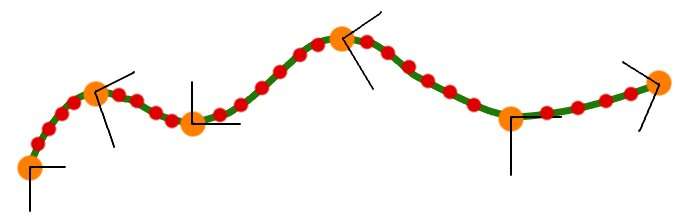
to describe the path that we wanted. But with linear interpolation, what we really ended up with was something like:
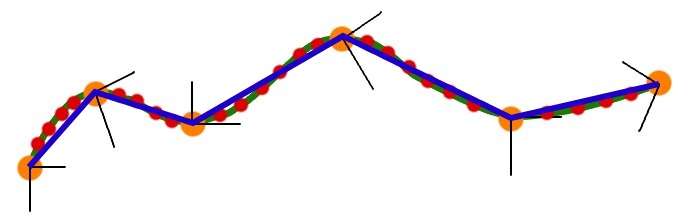
But today, I'll introduce cubic spline interpolation, and this will produce a truly smooth curve. Most of the code is the same, the only thing that has changed is that I have added a cubic option to the build function and have changed the animation to be reliant on time.
Building the natural cubic spline is more math intensive than with linear interpolation, so to start out here's a few links on cubic splines:
- http://mathworld.wolfram.com/CubicSpline.html
- http://www.physics.utah.edu/~detar/phycs6720/handouts/cubic_spline/cubic_spline/node1.html
- http://www.cse.unsw.edu.au/~lambert/splines/
- An Introduction to Splines for Use in Computer Graphics and Geometric Modelling
//a point on a cubic spline is affected by every other pointSo the first thing we do is build the cubic polynomials for each control point. And because each point controls the shape of the spline, we have to consider each point when building the polynomials. In this way, it is very different from linear interpolation in that we have to know information about the whole curve to perform a cubic interpolation rather than just the current and next control point as with linear interpolation. You might be thinking that "well Vector3 already contains a SmoothStep function that performs cubic interpolation". And you're right it does, but just interpolating the two points without knowledge of the whole curve still produces segmented(i.e. not smooth) animation. Once we have the polynomials for each control point, we can perform a cubic interpolation by just looking at the current and next control point, in the same fashion that we did with linear interpolation.
//so we need to build the cubic equations for each control point
//by looking at the entire curve. This is what calculateCubicSpline does
Vector3[] looks = new Vector3[mKeyFrames.Count];
Vector3[] positions = new Vector3[mKeyFrames.Count];
Vector3[] ups = new Vector3[mKeyFrames.Count];
for (int i = 0; i < mKeyFrames.Count; i++)
{
looks[i] = mKeyFrames[i].Look;
positions[i] = mKeyFrames[i].Position;
ups[i] = mKeyFrames[i].Up;
}
Cubic[] pos_cubic = calculateCubicSpline(mKeyFrames.Count - 1, positions);
Cubic[] look_cubic = calculateCubicSpline(mKeyFrames.Count - 1, looks);
Cubic[] up_cubic = calculateCubicSpline(mKeyFrames.Count - 1, ups);
for (int i = 0; i < mKeyFrames.Count - 1; i++)
{
for (int j = 0; j < mPathSteps; j++)
{
float k = (float)j / (float)(mPathSteps - 1);
Vector3 center = pos_cubic[i].GetPointOnSpline(k);
Vector3 up = up_cubic[i].GetPointOnSpline(k);
Vector3 look = look_cubic[i].GetPointOnSpline(k);
Vector3 r = Vector3.Cross(up, look);
Vector3 u = Vector3.Cross(look, r * -1f);
Camera cam = new Camera();
cam.SetLens(mFOV, mAspect, mNearZ, mFarZ);
cam.Place(center, look, u);
cam.BuildView();
mCameraPath.Add(cam);
}
}
This is what the calculateCubicSpline function does, it builds polynomials for each control point, successively building off of the last control point's polynomial. Let's look at it:
Vector3[] gamma = new Vector3[n + 1];Once we find the cubic equation for each control point (key frame), we can use GetPointOnSpline() uses the cubic equation to calculate the intermediate point along the cubic spline.
Vector3[] delta = new Vector3[n + 1];
Vector3[] D = new Vector3[n + 1];
int i;
/* We need to solve the equation
* taken from: http://mathworld.wolfram.com/CubicSpline.html
[2 1 ] [D[0]] [3(v[1] - v[0]) ]
: 1 4 1 : :D[1]: :3(v[2] - v[0]) :
: 1 4 1 : : . : = : . :
: ..... : : . : : . :
: 1 4 1: : . : :3(v[n] - v[n-2]):
[ 1 2] [D[n]] [3(v[n] - v[n-1])]
by converting the matrix to upper triangular.
The D[i] are the derivatives at the control points.
*/
//this builds the coefficients of the left matrix
gamma[0] = Vector3.Zero;
gamma[0].X = 1.0f / 2.0f;
gamma[0].Y = 1.0f / 2.0f;
gamma[0].Z = 1.0f / 2.0f;
for (i = 1; i < n; i++)
{
gamma[i] = Vector3.One / ((4 * Vector3.One) - gamma[i - 1]);
}
gamma[n] = Vector3.One / ((2 * Vector3.One) - gamma[n - 1]);
delta[0] = 3 * (v[1] - v[0]) * gamma[0];
for (i = 1; i < n; i++)
{
delta[i] = (3 * (v[i + 1] - v[i - 1]) - delta[i - 1]) * gamma[i];
}
delta[n] = (3 * (v[n] - v[n - 1]) - delta[n - 1]) * gamma[n];
D[n] = delta[n];
for (i = n - 1; i >= 0; i--)
{
D[i] = delta[i] - gamma[i] * D[i + 1];
}
// now compute the coefficients of the cubics
Cubic[] C = new Cubic[n];
for (i = 0; i < n; i++)
{
C[i] = new Cubic(v[i], D[i], 3 * (v[i + 1] - v[i]) - 2 * D[i] - D[i + 1],
2 * (v[i] - v[i + 1]) + D[i] + D[i + 1]);
}
return C;
public Vector3 GetPointOnSpline(float s)And that's it. Now we have a smooth animation of our camera. There are many more ways to calculate the curve, including: hermite curves, b-splines, bezier curves, catmull-rom splines, NURBS(Nonuniform Rational B-Splines) and others. Microsoft also has a sample on creating a camera path that appears to be using hermite curves. But they hide all the details from you, and it's just more interesting to know the math behind it isn't it ;) ?
{
return (((d * s) + c) * s + b) * s + a;
}
Thursday, May 1, 2008
Camera Animation, Part I
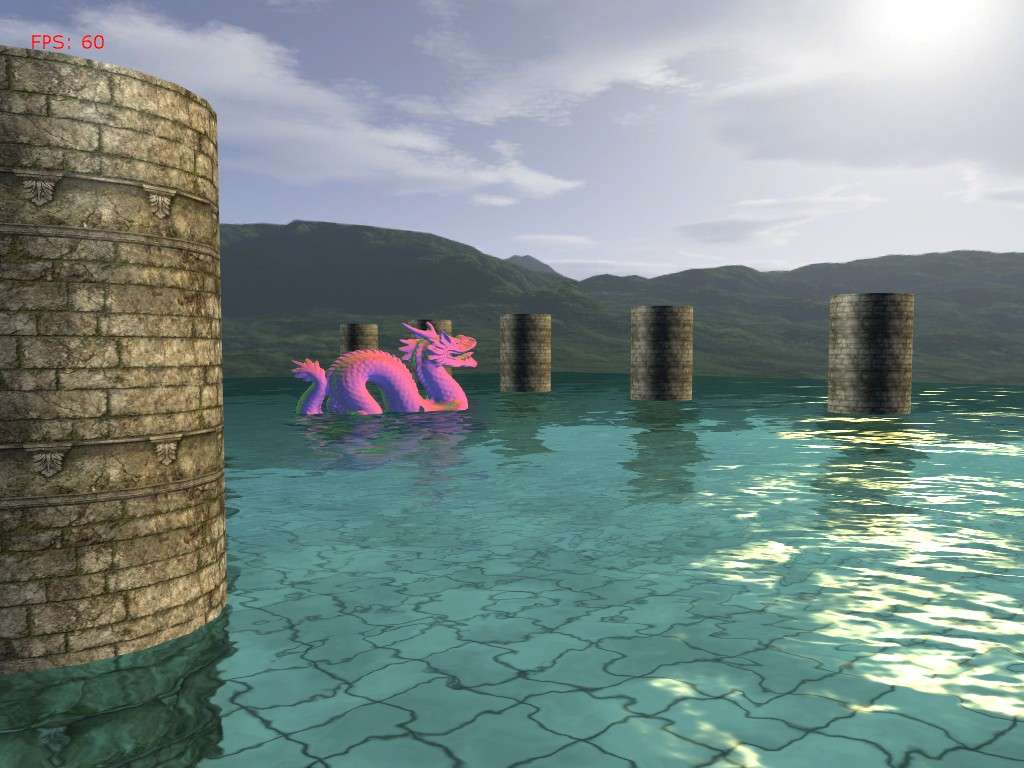
Due to the video being such high frequency, the blogger, youtube video compressors always make the video look like crap. Original can be found here:
So today I'll be giving a tutorial/sample on cut-scene animation, more specifically camera animation. This will be a 2 part tutorial, and this one will focus on linear interpolation of camera key frames.
So what are key frames? Key frames are the control points of an animation. They are the main/key points that you specifically define where the camera should be, and everything else in between is interpolated. You can also think of them as an outline of what the animation should look like. Here's a picture to help describe what I'm talking about.

Here, the green line is the path we want to follow, the orange dots are our key frames, and the red dots are the intermediate cameras that we want to generate.
So how do we create these intermediate cameras?
for (int i = 0; i < mKeyFrames.Count - 1; i++)Pretty self explanatory, a basic linear interpolation. XNA is handy in that we can cut out all of that code and just use Vector3.Lerp().
{
for (int j = 0; j < mPathSteps; j++)
{
//We could alternatively use the Vector3.lerp function
//but I wanted to show the math behind performing the linear interpolation
Vector3 diff = mKeyFrames[i + 1].Position - mKeyFrames[i].Position;
diff = Vector3.Multiply(diff, (float)j / (float)(mPathSteps - 1));
Vector3 center = mKeyFrames[i].Position + diff;
diff = mKeyFrames[i + 1].Look - mKeyFrames[i].Look;
diff = Vector3.Multiply(diff, (float)j / (float)(mPathSteps - 1));
Vector3 look = mKeyFrames[i].Look + diff;
diff = (mKeyFrames[i + 1].Up - mKeyFrames[i].Up);
diff = Vector3.Multiply(diff, (float)j / (float)(mPathSteps - 1));
Vector3 up = mKeyFrames[i].Up + diff;
Vector3 r = Vector3.Cross(up, look);
Vector3 u = Vector3.Cross(look, r * -1f);
Camera cam = new Camera();
cam.SetLens(mFOV, mAspect, mNearZ, mFarZ);
cam.Place(center, look, u);
cam.BuildView();
mCameraPath.Add(cam);
}
}
The included demo has a pre defined path that is shown in the video. But you can also create your own path at run-time. Here are the controls:
- 1 - Default camera view
- 2 - Play the camera animation
- 3 - Rewind the camera animation
- 4 - Pause the camera animation
- C - Clear the current key frames
- K - Add the current camera to the key frames list
- B - Build the camera path from the current key frames
- O - Save the current key frames to an XML file
When you start the demo, the predefined path is already loaded, all you have to do is hit '2', and it will play. If you want to make your own path first clear the key frames by pressing 'C', and then navigate to where you want to be along your path and press 'K' to add your key frames. Once you're happy with your path, press 'B' to build the camera animation, and then you can play it by pressing '2'. Normally, I would use winForms or a GUI such as neoforce for the controls, but this adds a lot of clutter.
So there's probably one thing that you might notice about the camera animation, and that is that it's not very smooth. Next time I will introduce cubic interpolation to smooth out the animation.
Thursday, April 17, 2008
Reflections with Billboard Impostors
Last time I mentioned that I would post a tutorial on generating reflections using billboard impostors, well here it is. Amidst the craziness of school right now, I've found time (or rather worked on this since it's more fun) to write up this tutorial. So lets get started.
Some prerequisites for this tutorial:
Anyways, Shawn Hargreaves posted about using environment maps for reflections a few weeks ago. But we're going to take it one step further and use impostors as well as the environment map for reflections. The main problem with environment mapped refections is that everything is assumed to be infinitely far away, and thus objects appear distorted and don't intersect with geometry correctly. Using billboarded impostors tries to alleviate some of this problem by taking the reflected rays and intersecting them with billboards of the scene geometry.
So here's a couple of images to demonstrate the limitations of environment mapping.
Environment mapping:

As you can see the sphere looks like it's floating above the quad when it is actually intersecting it. Also, the dragon's reflection is too far away in the reflection.
Impostors:

Now with the impostors, the reflection of the dragon is much more accurate, and the sphere now correctly intersects the floor quad.
The details:
First we want to render each diffuse object from the reflector's point of view. So we first get the bounding box corners of the impostor geometry and setup the camera to be positioned at the center of the reflector, and looking at the center of the diffuse geometry.
Next we want to project these corners to screen space and find the bounding box that fits around these projected corners:
Now we want to unproject these screen space vertices into world space so that we can form a 3D impostor quad of our geometry. We will use this quad later in the reflection shader for a reflective object.
We also render our diffuse object to a RenderTarget that will be the texture for our impostor quad. To do this, we setup an Orthographic Projection so that we don't have any of the perspective distortion that comes with a regular perspective projection matrix. We clear the scene with zero alpha, and we render the impostor with full alpha so that we only capture the diffuse object and nothing else.
Here's our resulting impostor image:

Now that we have constructed our impostor quad, it's time to render our reflective object. Here's the pixel shader code that we will use to do this:
So, we iterate over each impostor in the Impostors array. We find the reflected ray as with environment mapping, and we use this ray to see if it intersects any of the impostor quads in our scene. If we find an intersection, we get the color from the impostor texture and blend with the environment map color based on the alpha component of the color from the impostor texture (the alpha will be zero for any part of the texture that isn't part of the diffuse object).
That's pretty much all there is to it. Not too complicated, and still very fast. The demo runs pretty fast: ~400 FPS with 16x MSAA at 1024x768 on my 8800GT.
Limitations:
One of the problems with billboard impostors is that there is no motion parallax. Also, the intersection of complex objects is not possible. This is where depth impostors and non-pinhole impostors come in. Depth impostors allow correct intersections and motion parallax. And non-pinhole impostors add on to depth impostors by allowing you to see almost the entire diffuse object from one viewpoint (whereas depth impostors suffer from occlusion errors because it can only capture the front face of any object).
Some prerequisites for this tutorial:
- Shader Model 3.0 compliant graphics card
- Experience with RenderTargets
- Experience with Custom Content Processors (not too important, I just won't go over these specifically)
Anyways, Shawn Hargreaves posted about using environment maps for reflections a few weeks ago. But we're going to take it one step further and use impostors as well as the environment map for reflections. The main problem with environment mapped refections is that everything is assumed to be infinitely far away, and thus objects appear distorted and don't intersect with geometry correctly. Using billboarded impostors tries to alleviate some of this problem by taking the reflected rays and intersecting them with billboards of the scene geometry.
So here's a couple of images to demonstrate the limitations of environment mapping.
Environment mapping:
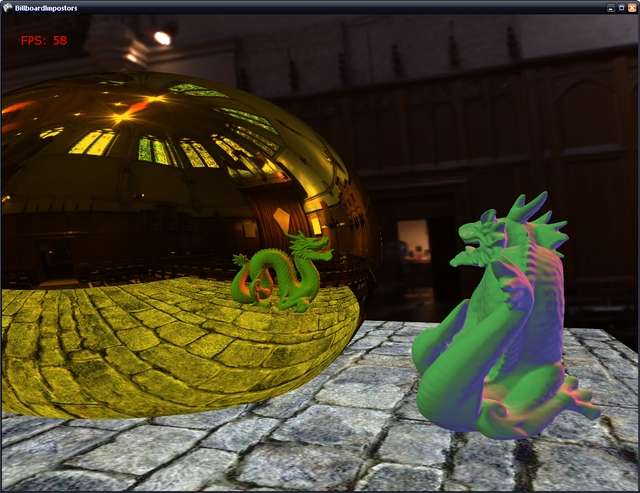
As you can see the sphere looks like it's floating above the quad when it is actually intersecting it. Also, the dragon's reflection is too far away in the reflection.
Impostors:

Now with the impostors, the reflection of the dragon is much more accurate, and the sphere now correctly intersects the floor quad.
The details:
First we want to render each diffuse object from the reflector's point of view. So we first get the bounding box corners of the impostor geometry and setup the camera to be positioned at the center of the reflector, and looking at the center of the diffuse geometry.
// Get the 8 corners of the bounding box and transform by the world matrix
Vector3[] corners = new Vector3[8];
Vector3.Transform(mBoundBox.GetCorners(), ref mWorld, corners);

// Get the transformed center of the mesh
// alternatively, we could use mBoundingSphere.Center as sometimes it works better
Vector3 meshCenter = Center;

// The quad is a special case. Since it's so much bigger than the reflector
// we have to make sure that our camera is looking straight at the quad and
// not it's center or we'll get a distorted view of the quad.
if (mMeshType == MeshType.Quad)
{
   meshCenter.X = reflectorCenter.X;
   meshCenter.Z = reflectorCenter.Z;
}

// Construct a camera to render our impostor
Camera impostorCam = new Camera(camera);

// Set the camera to be at the center of the reflector and to look at the diffuse mesh
impostorCam.LookAt(reflectorCenter, meshCenter);
impostorCam.BuildView();
Next we want to project these corners to screen space and find the bounding box that fits around these projected corners:
// Now we project the vertices to screen space, so we can find the AABB of the screen
// space vertices
Vector3[] screenVerts = new Vector3[8];
for (int i = 0; i < 8; i++)
{
   screenVerts[i] = mGraphicsDevice.Viewport.Project(corners[i],
                           impostorCam.Projection, impostorCam.View, mWorld);
}

// compute the screen space AABB
Vector3 min, max;
ComputeBoundingBoxFromPoints(screenVerts, out min, out max);

// construct the quad that will represent our diffuse mesh
Vector3[] screenQuadVerts = new Vector3[4];
screenQuadVerts[0] = new Vector3(min.X, min.Y, min.Z);
screenQuadVerts[1] = new Vector3(max.X, min.Y, min.Z);
screenQuadVerts[2] = new Vector3(max.X, max.Y, min.Z);
screenQuadVerts[3] = new Vector3(min.X, max.Y, min.Z);
Now we want to unproject these screen space vertices into world space so that we can form a 3D impostor quad of our geometry. We will use this quad later in the reflection shader for a reflective object.
We also render our diffuse object to a RenderTarget that will be the texture for our impostor quad. To do this, we setup an Orthographic Projection so that we don't have any of the perspective distortion that comes with a regular perspective projection matrix. We clear the scene with zero alpha, and we render the impostor with full alpha so that we only capture the diffuse object and nothing else.
//now unproject the screen space quad and save the
//vertices for when we render the impostor quad
for (int i = 0; i < 4; i++)
{
   mImpostorVerts[i] = mGraphicsDevice.Viewport.Unproject(screenQuadVerts[i],
                           impostorCam.Projection, impostorCam.View, mWorld);
}

//compute the center of the quad
mImpostorCenter = Vector3.Zero;
mImpostorCenter = mImpostorVerts[0] + mImpostorVerts[1] + mImpostorVerts[2] + mImpostorVerts[3];
mImpostorCenter *= .25f;

// calculate the width and height of the imposter's vertices
float width = (mImpostorVerts[1] - mImpostorVerts[0]).Length() * 1.2f;
float height = (mImpostorVerts[3] - mImpostorVerts[0]).Length() * 1.2f;

// We construct an Orthographic projection to get rid of the projection distortion
// which we don't want for our impostor texture
impostorCam.Projection = Matrix.CreateOrthographic(width, height, .1f, 100);
impostorCam.BuildView();

//save the WorldViewProjection matrix so we can use it in the shader
mWorldViewProj = impostorCam.ViewProj;

mGraphicsDevice.SetRenderTarget(0, mRenderTarget);
mGraphicsDevice.Clear(ClearOptions.Target, new Color(1, 0, 0, 0), 1.0f, 1);

Draw(impostorCam);

mGraphicsDevice.SetRenderTarget(0, null);


// finally, compute the normal for the impostor quad, and push the vertices
// back to the center of the diffuse mesh
Vector3 trans = meshCenter - mImpostorCenter;
for (int i = 0; i < 4; ++i)
{
   mImpostorVerts[i] += trans;
}

mNormal = impostorCam.Look;
Here's our resulting impostor image:

Now that we have constructed our impostor quad, it's time to render our reflective object. Here's the pixel shader code that we will use to do this:
float4 PixelShaderFunction(VertexShaderOutput input) : COLOR0
{
   input.NormalW = normalize(input.NormalW);

   float3 fromEyeW = normalize(input.PosW - EyePos);

   //find the relflected ray by reflecting the fromEyeW vector across the normal
   float3 reflectedRay = reflect(fromEyeW, input.NormalW);

   float4 finalColor = texCUBE(EnvTex, reflectedRay);

   if(UseImpostors)
   {
       for(int i = 0; i < 2; i++)
       {
           //take the dot product of the reflected ray and the normal of the impostor
           //quad to see how orthogonal the ray is to the quad
           //if a = 0, then the ray is parallel to the quad
           //if a = 1, then it is orthogonal to the quad
           float a = dot(-reflectedRay, Impostors[i].Normal);

           //if less than this, the ray is nearly or entirely parallel to the plane
           if(a > 0.001f)
           {
               //we construct the vector from a point on the quad to the pixel position
               float3 vec = Impostors[i].Vertex - input.PosW;

               //the signed distance from the pixel position to the quad is given by the negative
               //dot product of the quad normal and vec
               float b = -dot(vec, Impostors[i].Normal);

               //divide b by a to get our distance from the world pixel position
               float r = b / a;

               if(r >= 0)
               {
                   //Using the Ray equation: P(t) = S + tV. Where S is the orgin, V is the direction,
                   //and t is the distance along V
                   //We find the intersection by starting at the origin (PosW), and walk to the end
                   //of the ray by multiplying the reflectedRay by r - the distance to the quad
                   //and adding it to the orgin
                   float3 intersection = input.PosW + r * reflectedRay;

                   float2 texC;

                   //project the intersection point with the WVP matrix used to render the quad
                   float4 projIntersect = mul(float4(intersection, 1.0), Impostors[i].WVP);

                   //perform the perspective divide and transform to NDC coordinates [0, 1]
                   texC = projIntersect.xy / projIntersect.w * .5 + .5;

                   //make sure the intersection is in the bounds of the image [0, 1]
                   if((texC.x <= 1 && texC.y <= 1) &&
                      (texC.x >= 0 && texC.y >= 0))
                   {
                       float4 color = tex2D(ImpostorSamplers[i], float2(texC.x, 1-texC.y));

                       //blend based on the alpha of the sampled color
                       finalColor = lerp(finalColor, color, color.a);
                   }
               }
           }
       }
   }

   finalColor.rgb *= MaterialColor;
   return finalColor;
}
So, we iterate over each impostor in the Impostors array. We find the reflected ray as with environment mapping, and we use this ray to see if it intersects any of the impostor quads in our scene. If we find an intersection, we get the color from the impostor texture and blend with the environment map color based on the alpha component of the color from the impostor texture (the alpha will be zero for any part of the texture that isn't part of the diffuse object).
That's pretty much all there is to it. Not too complicated, and still very fast. The demo runs pretty fast: ~400 FPS with 16x MSAA at 1024x768 on my 8800GT.
Limitations:
One of the problems with billboard impostors is that there is no motion parallax. Also, the intersection of complex objects is not possible. This is where depth impostors and non-pinhole impostors come in. Depth impostors allow correct intersections and motion parallax. And non-pinhole impostors add on to depth impostors by allowing you to see almost the entire diffuse object from one viewpoint (whereas depth impostors suffer from occlusion errors because it can only capture the front face of any object).
Tuesday, April 8, 2008
Paper Submitted to Eurographics
Well we finally got our paper submitted to Eurographics Symposium on Rendering, with 5 minutes to spare before deadline :). I think I had about 3 hours of sleep in the last few days. Hopefully we'll get accepted. The title of our paper was Non-Pinhole Impostors.
So now I have to implement my own malloc for Operating Systems, and a databases project due in the next week. I'm going to try to work on the Billboard Impostors tutorial that I mentioned last post also. Busy times.
So now I have to implement my own malloc for Operating Systems, and a databases project due in the next week. I'm going to try to work on the Billboard Impostors tutorial that I mentioned last post also. Busy times.
Monday, March 31, 2008
Reflections with Depth Impostors
Since the beginning of the semester I've been researching reflections using Occlusion Camera Depth Impostors. The occlusion camera had been developed in the same graphics lab a few years ago, and my task was to apply it to depth impostors. The idea of using depth impostors is that, you can render a diffuse object to a buffer, and then use the color and depth information to correctly intersect the depth map with reflected rays from a reflective surface. Now the problem here is that we can only see so much from the viewpoint of the reflector. Meaning that some rays would actually intersect the real diffuse object but won't intersect our depth map because we don't have enough information.
What the occlusion camera brings to the table is the ability to store more depth information from the diffuse object. It does this by distorting rays such that we can sample the top and bottom of the diffuse object, where if we were to use a regular camera we wouldn't capture these areas. Yes, kind of vague and hard to visualize without pictures, but those will come in due time. It's a really cool topic of research that I will discuss in more depth once we submit our paper to the Eurographics Symposium.
But for now I'll leave you with some pictures of some early work that I did as a prerequisite for the research. Also, in the coming days (read- after our paper deadline) I will post a tutorial on using billboard impostors for reflections in XNA.
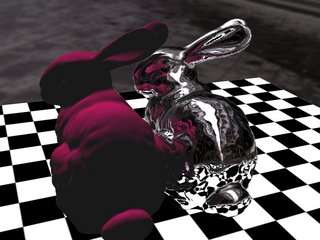
A reflected bunny with correct intersections


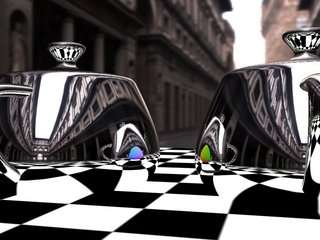
3rd order and 2nd order reflections showing the impostor normals


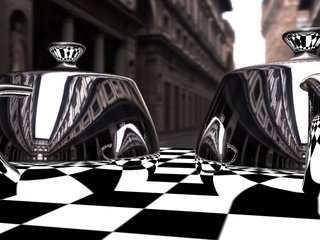
2nd order reflections

What the occlusion camera brings to the table is the ability to store more depth information from the diffuse object. It does this by distorting rays such that we can sample the top and bottom of the diffuse object, where if we were to use a regular camera we wouldn't capture these areas. Yes, kind of vague and hard to visualize without pictures, but those will come in due time. It's a really cool topic of research that I will discuss in more depth once we submit our paper to the Eurographics Symposium.
But for now I'll leave you with some pictures of some early work that I did as a prerequisite for the research. Also, in the coming days (read- after our paper deadline) I will post a tutorial on using billboard impostors for reflections in XNA.
A reflected bunny with correct intersections

3rd order and 2nd order reflections showing the impostor normals
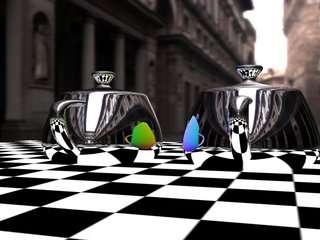
2nd order reflections
Tuesday, March 25, 2008
Volumetric Clouds
Last summer I did some experiments with an unusual way of rendering volumetric clouds. The usual way to render volumetric clouds is with a bunch of quads/voxels/slices. But this approach is much simpler, and at least for the exterior, gives really good results.
The problem came when rendering multiple clouds in a field. Due to the way the cloud is rendered, overlapping clouds would produce artifacts, and short of rendering each cloud by itself I couldn't figure out how to eliminate the artifacts. But then again, I didn't spend too much time on them either.
The general approach is as follows:

A really simple algorithm that produces a pretty good result. And as you can see, it is essentially a post processing technique. However, it seems that this approach is more suitable to large volcanic or nuclear plumes rather than a dense field of many cumulus clouds (e.g. a large cloud model with many mega particles, as can be seen in the author's images).
My experiment:


Author's images:


There's an article on this technique in Shader X5 and you can find the slides here. If you're thinking of trying this technique out, you really don't need the book. The slides are more than you need to implement it. The only detail is that you don't actually use a fractal cube like the slides say, you really just use a billboarded quad.
The problem came when rendering multiple clouds in a field. Due to the way the cloud is rendered, overlapping clouds would produce artifacts, and short of rendering each cloud by itself I couldn't figure out how to eliminate the artifacts. But then again, I didn't spend too much time on them either.
The general approach is as follows:
- Draw your scene as usual
- Then render a low poly cloud mesh - this could be created in Max/Maya with a group of spheres/ellipsoids in the shape of a cloud
- Copy the backbuffer to a render target, and clear the alpha channel
- Render the clouds with full alpha and your lighting of choice (I only implemented simple phong shading, a better lighting algorithm would have helped). We'll call this the cloud map.
- Blur the cloud map using a Gaussian filter, or another if you like.
- After blurring we need to distort the blurred cloud map. To do this, we place a quad at the center of each cloud and billboard each vertex to the camera (make sure the billboard covers the entire cloud from any angle).
- Now we render this quad to distort the cloud map. In the pixel shader for the quad we use the projected position as the texture coordinates and shift the texture coordinates based on the angles to the X and Y axis. We then sample a 2-channel fractal/noise texture with these texture coordinates to obtain our distortion offset. Next, we sample the blurred cloud map using the texture coordinates distorted by the distortion offset and the distance from the quad to the camera:
- float4 distortedColor = tex2D(BlurredCloudSampler, texC + offset/ dist);
- Optionally, after we have distorted our cloud map, we can perform a radial blur for a softer look.
- Finally we merge our render target with the back buffer.
A really simple algorithm that produces a pretty good result. And as you can see, it is essentially a post processing technique. However, it seems that this approach is more suitable to large volcanic or nuclear plumes rather than a dense field of many cumulus clouds (e.g. a large cloud model with many mega particles, as can be seen in the author's images).
My experiment:


Author's images:
There's an article on this technique in Shader X5 and you can find the slides here. If you're thinking of trying this technique out, you really don't need the book. The slides are more than you need to implement it. The only detail is that you don't actually use a fractal cube like the slides say, you really just use a billboarded quad.
Saturday, March 22, 2008
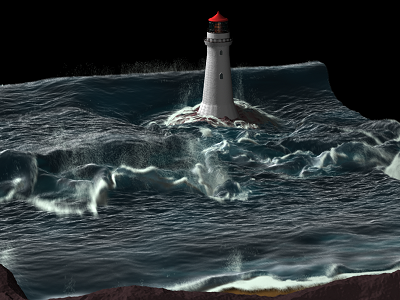
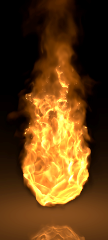
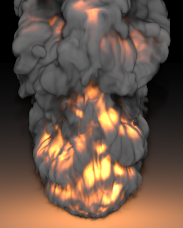
Fluid Dynamics
Fluid dynamics has always been an interest of mine. I've just never found the time to research any of the techniques. Hopefully sometime this summer I will have time...
Anyways, the work by Ron Fedkiw is just amazing. Take a look at his website to see for your self.
http://physbam.stanford.edu/~fedkiw/


Anyways, the work by Ron Fedkiw is just amazing. Take a look at his website to see for your self.
http://physbam.stanford.edu/~fedkiw/

Thursday, March 20, 2008
More Software Rendering...
Quick update. Just found a video I had made of the software renderer.
Not perfect, but pretty good I'd say.
Technorati Profile
Not perfect, but pretty good I'd say.
Technorati Profile
Terrain Rendering and Atmospheric Scattering
Terrain has always been an interest of mine, ever since I loaded my first 8-bit raw heightmap. And last summer I decided to dive into Atmospheric Scattering after reading Ysaneya's developer journal over on gamedev for quite some time.
So I read ATi's paper and looked at their demo and set out to work. Now, I'm not math genious (having only taken calculus and linear algebra), but implementing atmospheric scattering is not for the faint of heart. However, after about a month I had a pretty good working implementation based on the Hoffman and Preetham paper.
Then I started on the water rendering component. There were two articles in Shader X3/4 that were of great help when it came to getting the color just right.
After a couple of months I had a pretty good looking demo. The terrain wasn't anything special, it was just broken down into a quadtree, so I was only able to render 2048x2048 terrain. In order to do this I made the water be at half the height of the terrain and culled the non-visible areas when i was above/below the water, so I was effectively only rendering half of the terrain when I was above/below the water line.
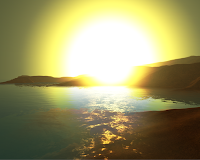
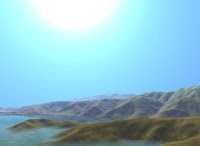
Anyways, on to the pictures:
Scene details:


And a video of it in action:
The water has realistic coastal coloring, soft edges when it intersects the terrain, under water fogging, and depth fogging.
This summer I plan to rewrite the whole application in c++. I also want to extend the terrain rendering with geomipmapping, fix the huge sun, and add volumetric clouds. I had tried implementing volumetric clouds using mega particles, but didn't turn out too well in a dense cloud field. Worked really well for volcanic or nuclear plumes though. More on this in a later post.
So I read ATi's paper and looked at their demo and set out to work. Now, I'm not math genious (having only taken calculus and linear algebra), but implementing atmospheric scattering is not for the faint of heart. However, after about a month I had a pretty good working implementation based on the Hoffman and Preetham paper.
Then I started on the water rendering component. There were two articles in Shader X3/4 that were of great help when it came to getting the color just right.
After a couple of months I had a pretty good looking demo. The terrain wasn't anything special, it was just broken down into a quadtree, so I was only able to render 2048x2048 terrain. In order to do this I made the water be at half the height of the terrain and culled the non-visible areas when i was above/below the water, so I was effectively only rendering half of the terrain when I was above/below the water line.
Anyways, on to the pictures:
Scene details:
- 1024x1024 terrain with multi-texturing and aerial perspective
- Sky dome with sun and skylight scattering
- 2048x2048 water plane(size not number of vertices)
- Bloom post processing
- Written in c# and managed directx


And a video of it in action:
The water has realistic coastal coloring, soft edges when it intersects the terrain, under water fogging, and depth fogging.
This summer I plan to rewrite the whole application in c++. I also want to extend the terrain rendering with geomipmapping, fix the huge sun, and add volumetric clouds. I had tried implementing volumetric clouds using mega particles, but didn't turn out too well in a dense cloud field. Worked really well for volcanic or nuclear plumes though. More on this in a later post.
Subscribe to:
Posts (Atom)